Connecting Instagram is the first real setup step inside UnlockDM. Until your account is connected, UnlockDM cannot watch your post comments, detect campaign keywords, or send the first DM after someone comments.
The good news: the setup is short. You create your account, sign in, complete onboarding, approve Instagram permissions, and return to the dashboard with your creator profile marked as connected. The screenshots below were taken from the local UnlockDM app with mock account data, so you can see the real flow without exposing a real Instagram profile.
Before You Start
Use the Instagram account you actually want to run campaigns from. If you manage multiple creator brands, do not connect a personal testing account and assume you can switch later without checking the campaign setup.
You will need:
- An UnlockDM account you can log in to.
- An Instagram Creator or Business account, not a personal account.
- Access to the Instagram login for that account.
- Permission to approve comment and messaging access for the account.
Instagram comment-to-DM automation depends on official Instagram messaging behavior. Meta's documentation for Private Replies explains that an Instagram Professional account can send one private message to a person who commented on its post, ad post, Reel, or live story. It also notes that the private reply must be sent within the allowed time window, and that a longer conversation can continue only after the person responds.
The login step uses Instagram's official authorization flow, documented by Meta under Instagram API with Instagram Login. In plain English, you approve access from Instagram, then Instagram sends you back to UnlockDM.
That is why connection setup matters. UnlockDM is not asking for permissions as a formality. Those permissions are what let the product receive comment events and send the first DM in a compliant way.
Step 1: Create Your UnlockDM Account
If you do not have an UnlockDM account yet, create one first. Open the signup page, enter your name, email, and a password — or use Continue with Google — and agree to the Terms and Privacy Policy.
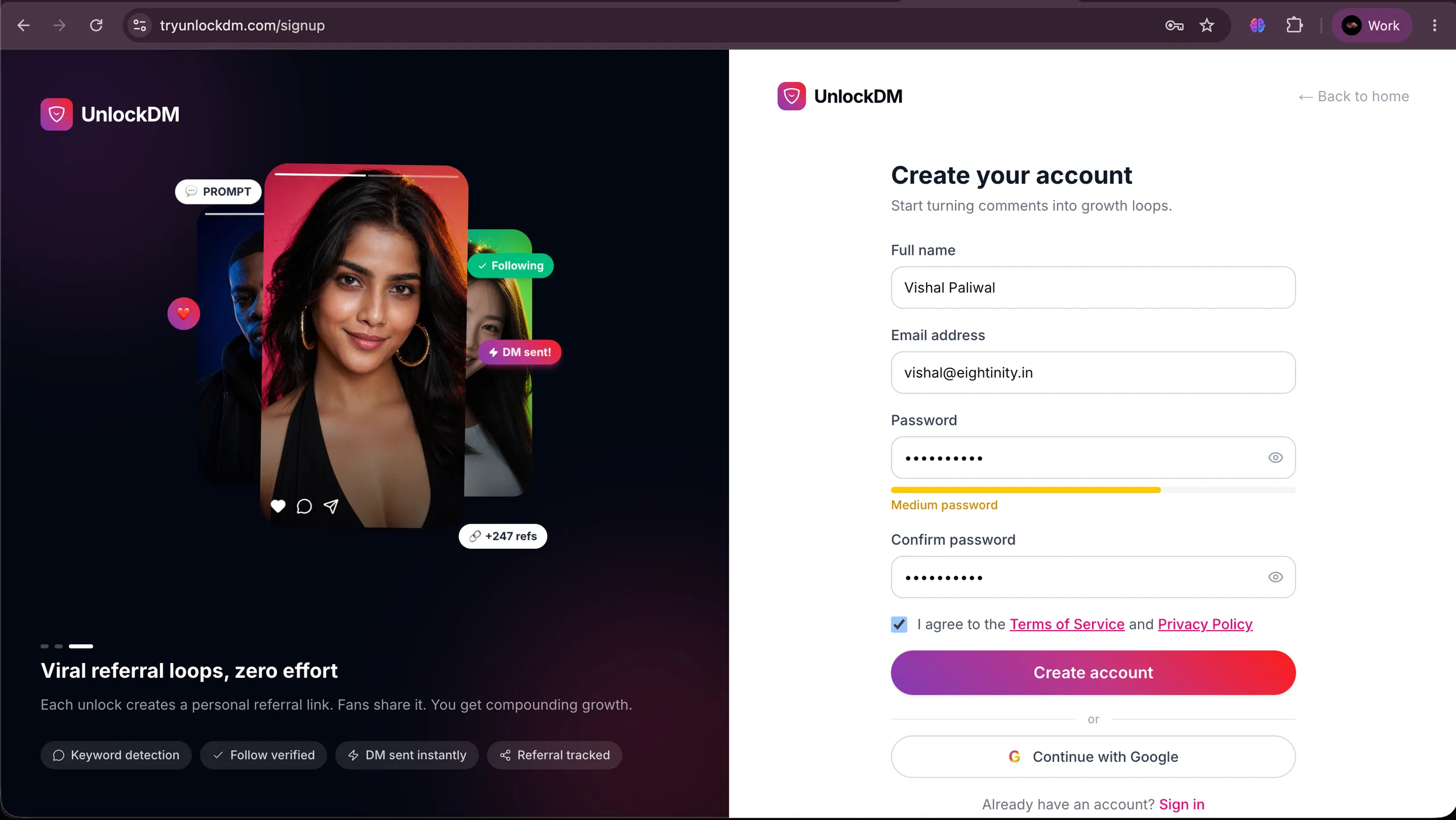
Local screenshot with mock data: the signup form on the real UnlockDM layout.
After you submit, UnlockDM sends a confirmation link to your email. Open it and click the link to activate your account before you sign in. (If you already have an account, skip ahead to signing in.)
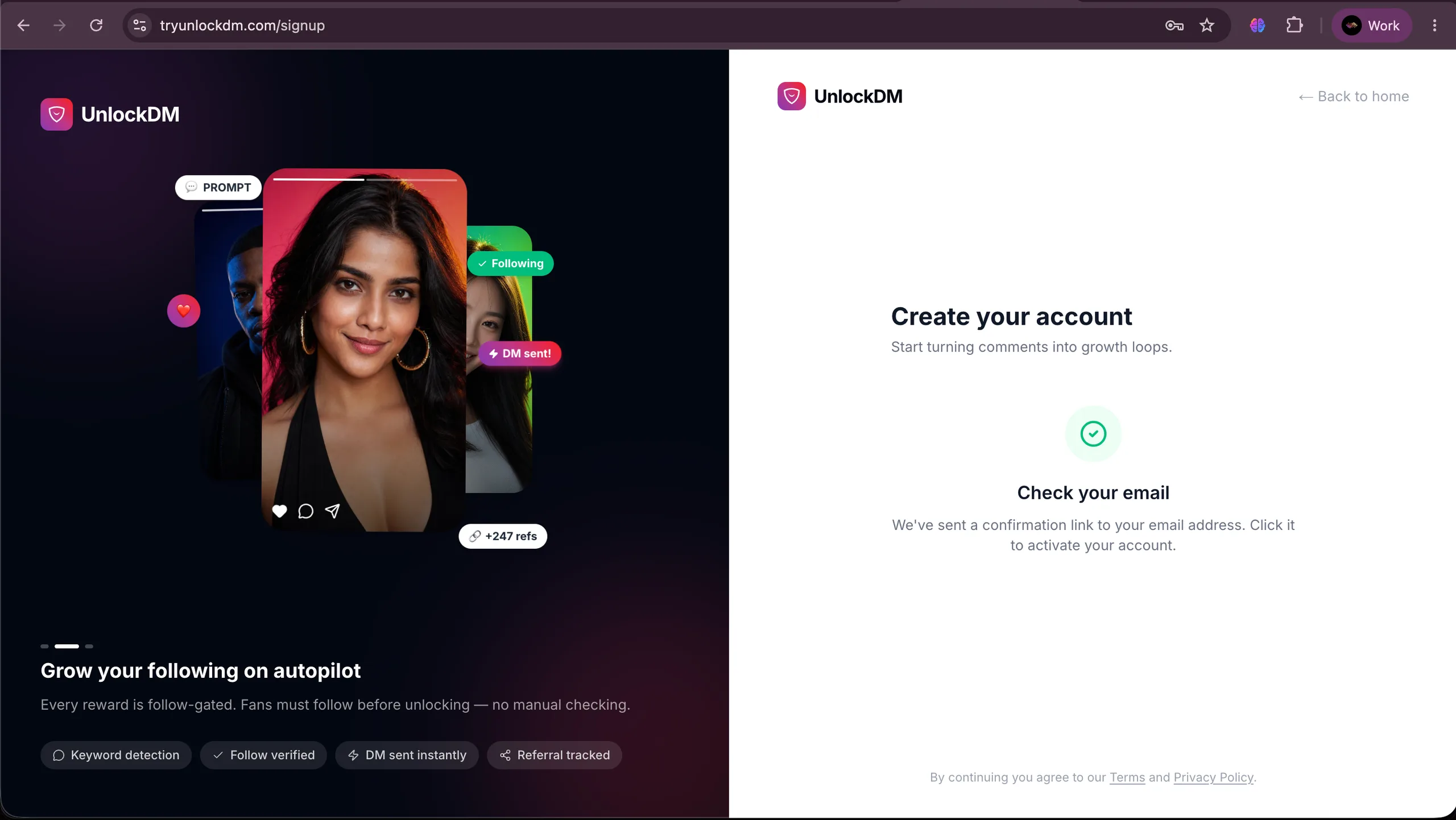
Confirm your email, and you are ready to sign in and start the connection flow.
Step 2: Sign In to UnlockDM
Open UnlockDM and sign in with your account. If you are setting up a new workspace, UnlockDM will take you into onboarding before you create your first campaign.
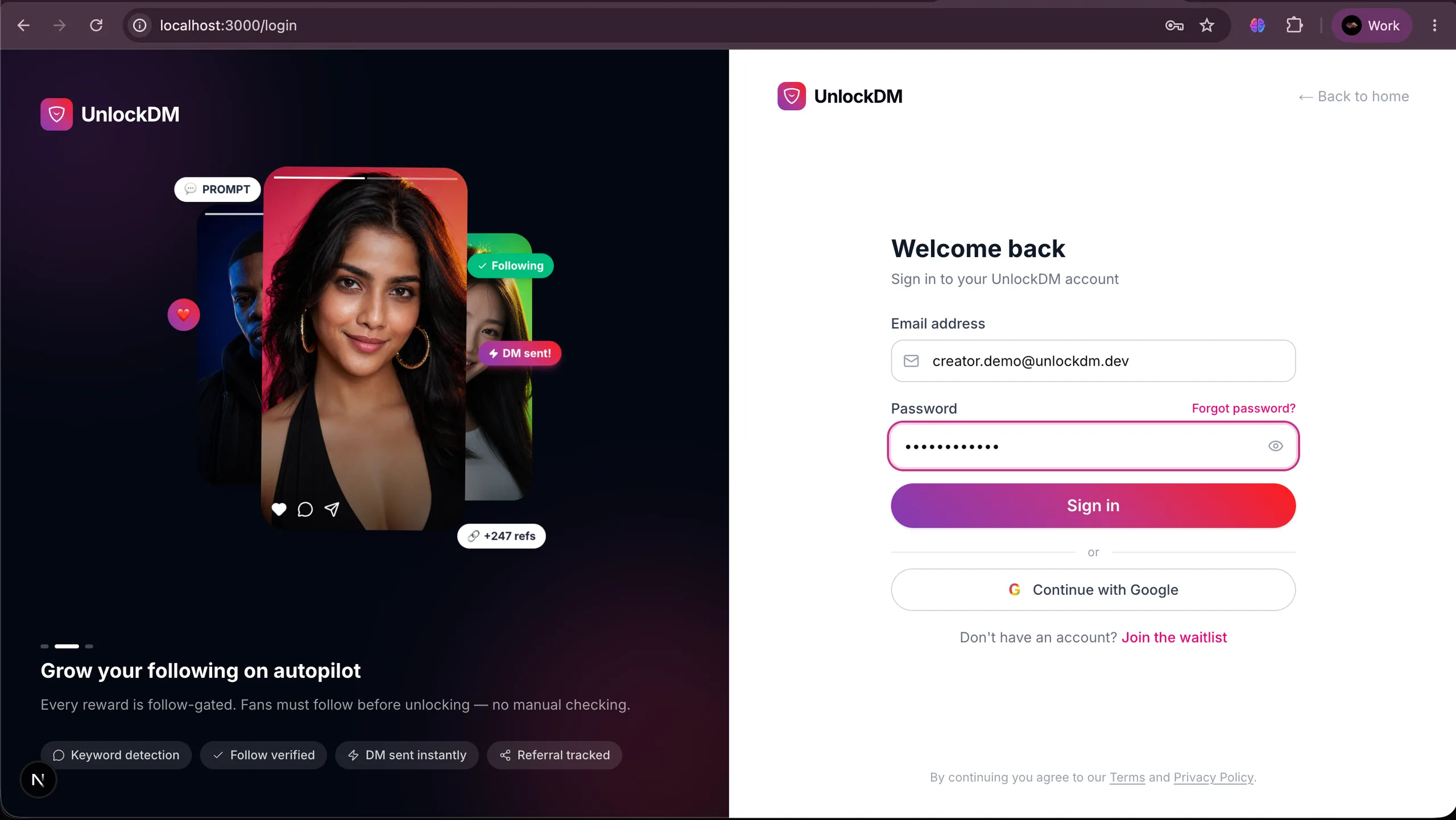
Local screenshot with mock data: the login screen uses the real UnlockDM layout and logo.
Do not start with a campaign URL or a random settings page. Sign in first, then let onboarding guide you through the connection step. That keeps the Instagram account, workspace, and campaign data attached to the same UnlockDM user.
Step 3: Connect Instagram from Onboarding
On the onboarding screen, UnlockDM asks you to connect your Instagram account before creating your first campaign. This is where you start the Instagram OAuth flow.
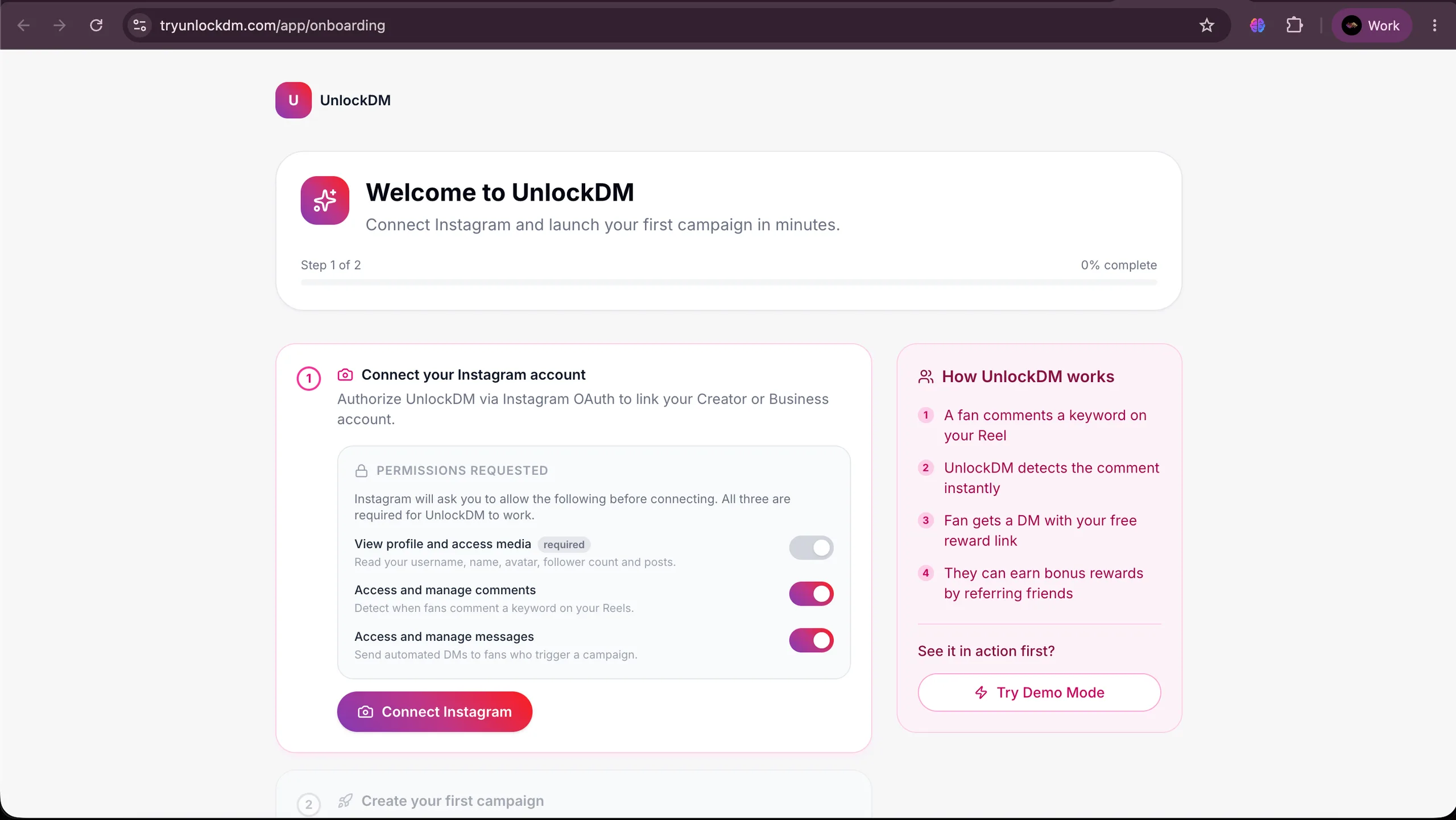
Local screenshot with mock data: onboarding shows the permissions UnlockDM needs before redirecting to Instagram.
Click Connect Instagram. If you are already signed in to Instagram in the browser, check the account carefully before approving. If the wrong account appears, switch accounts first.
For most creators, this is the easiest place to make a mistake. You may have a personal account, a brand account, and a client account saved on the same device. UnlockDM can only automate the account you approve in this step.
Step 4: Approve the Instagram Permissions
UnlockDM's connection flow asks Instagram for the permissions needed to:
| Permission area | Why it matters |
|---|---|
| Basic profile | Confirms which Instagram account is connected and displays the handle in Settings. |
| Comments access | Lets UnlockDM detect keyword comments on campaign posts and Reels. |
| Messaging access | Lets UnlockDM send the first private reply after a matching comment. |
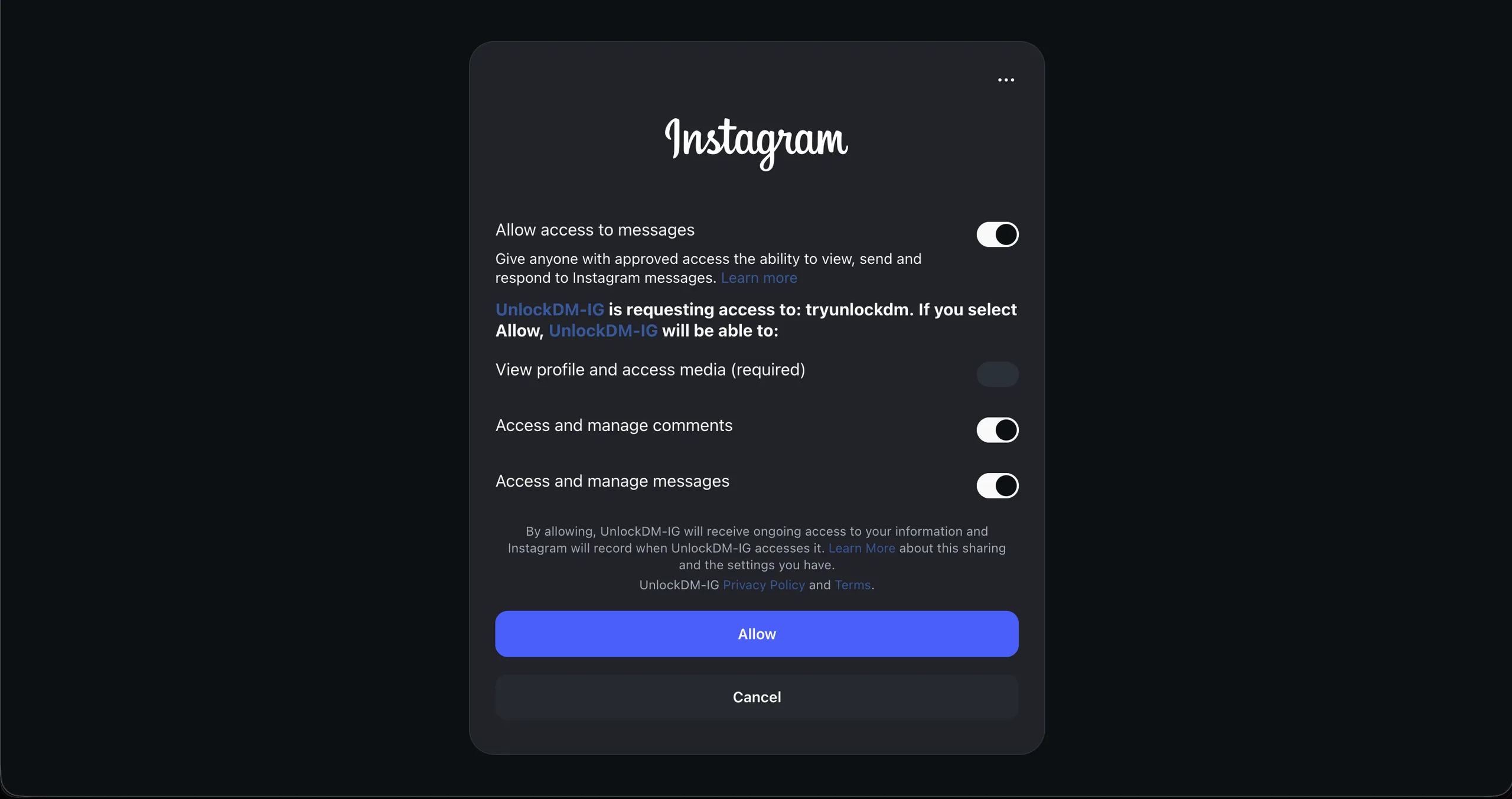
Local screenshot with mock data: the real permission screen opens on Instagram and may look slightly different.
Approve all required permission toggles. If you skip one, the connection may finish in a partial or failed state, and campaigns will not be able to run correctly.
Step 5: Confirm the Connected Dashboard State
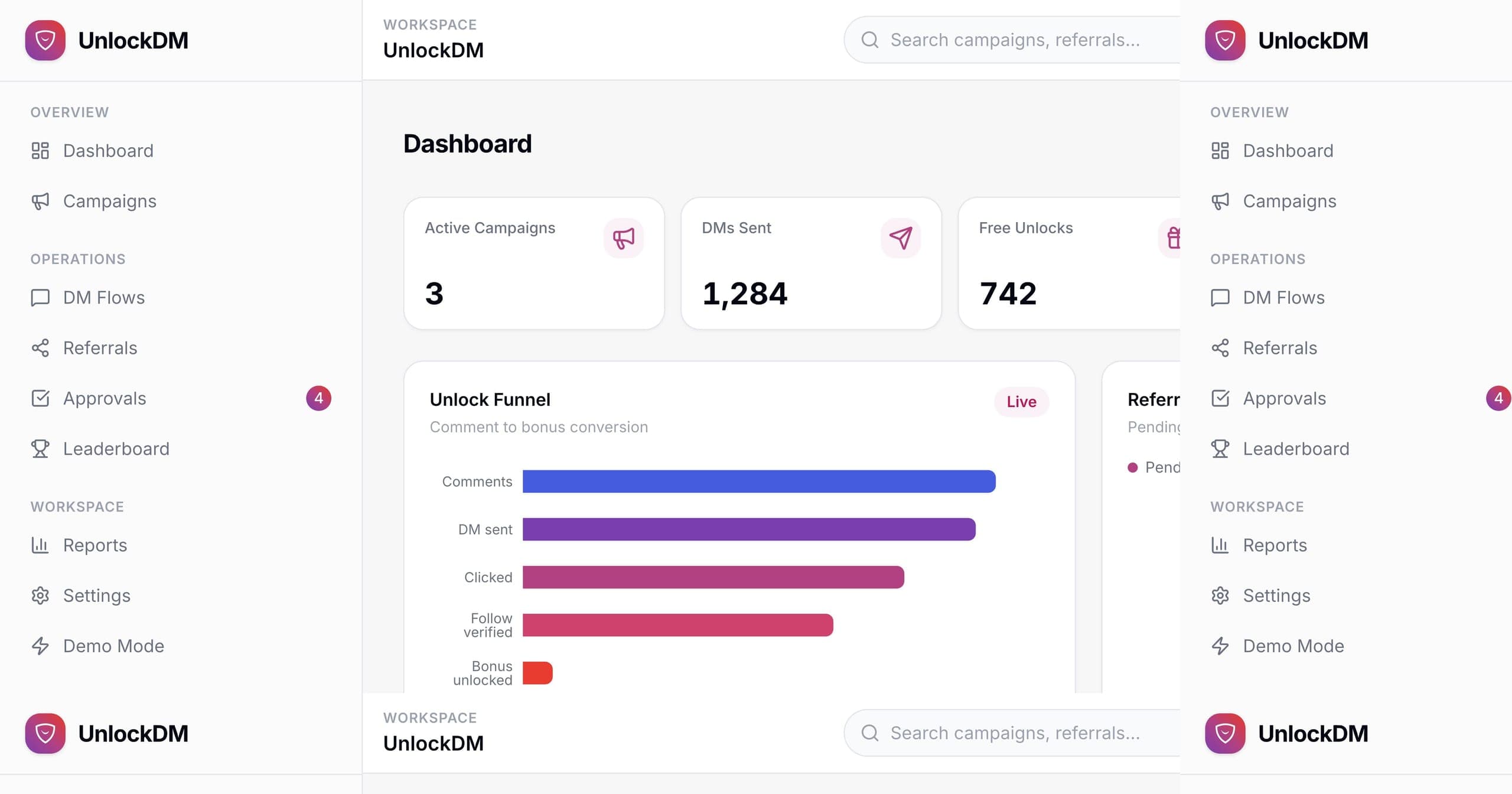
After you approve the permissions, Instagram redirects you back to UnlockDM. The dashboard should show your connected creator profile in the sidebar, including the Instagram handle, follower count, and post count.
Look for three signals:
- Your Instagram handle appears in the creator profile area.
- Follower and post counts appear under the connected account.
- The dashboard can now show campaign metrics, approvals, and DM activity.
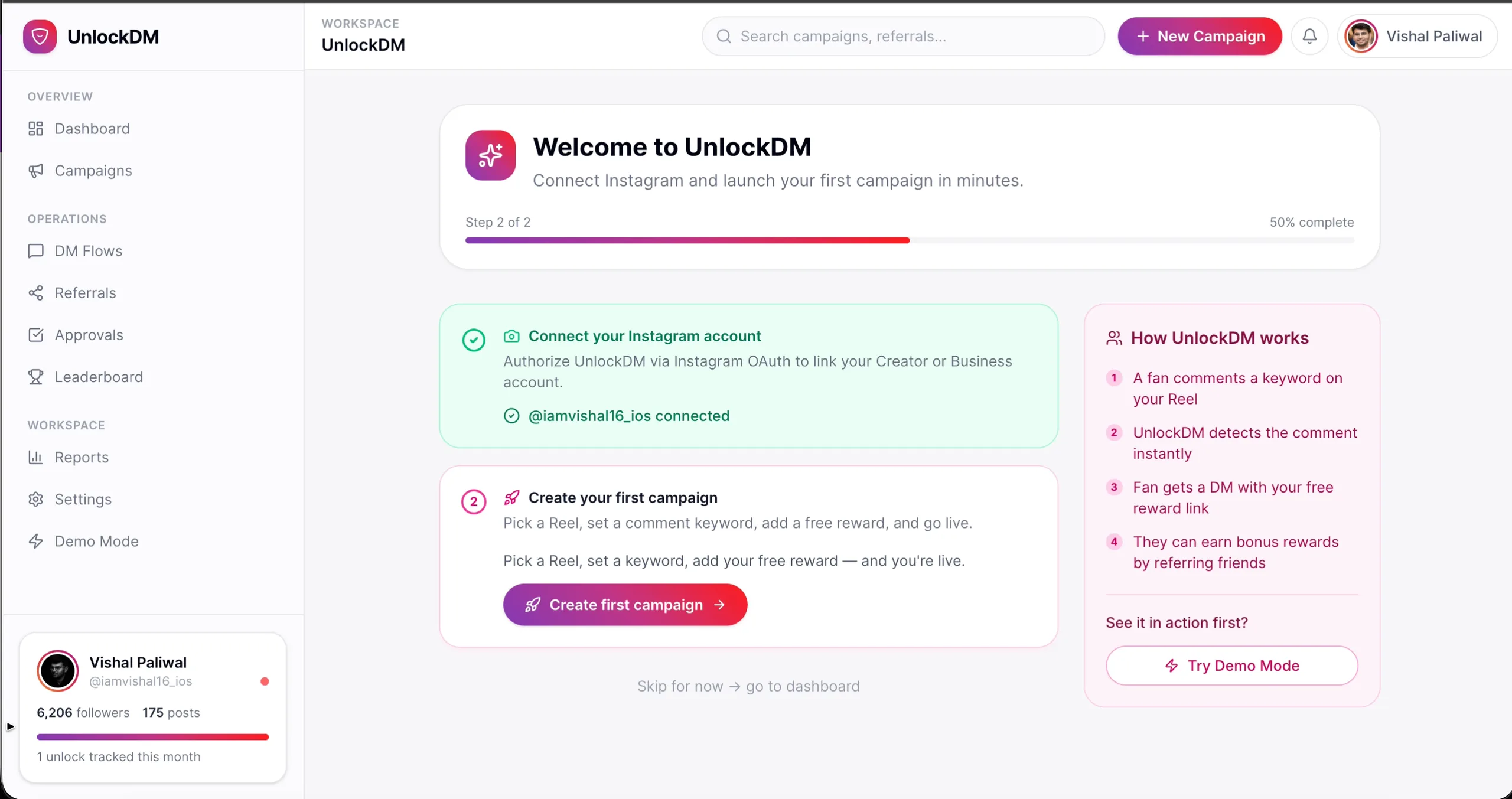
The connected state: the green check confirms Instagram is linked, and the sidebar profile shows the handle, follower count, and post count for the connected account.
If you see this connected state, your setup is done. You can now create your first campaign, choose a post or Reel, set a keyword, and write the DM people should receive after commenting.
What UnlockDM Does After Connection
Once connected, UnlockDM stores the Instagram access token securely and uses it only for the automation features you enable. The product checks the connected account, listens for eligible comment events, and sends the campaign DM when someone comments your chosen keyword.
For example, if your Reel caption says "comment GUIDE and I will DM you the checklist," UnlockDM can detect the keyword comment and send the first message automatically. If your campaign uses a follow gate or referral reward, the rest of the flow happens inside the campaign rules you configure.
This is also why reconnecting matters if access expires or permissions change. If Instagram access is no longer valid, campaigns may stop responding until you reconnect from Settings.
Common Connection Issues
Most setup problems are simple permission or account-selection issues. Use this table before assuming something is broken.
| What you see | Likely reason | What to do |
|---|---|---|
| Redirects back to login | You are not signed in to UnlockDM. | Log in to UnlockDM first, then open Settings and connect again. |
| Wrong Instagram handle connected | You approved the wrong Instagram account. | Disconnect, switch Instagram accounts, then reconnect the correct one. |
| Connection fails after approval | A permission was denied or the OAuth session expired. | Start the flow again and approve every requested permission. |
| Campaign cannot find posts | Instagram access is not fully ready or permissions are incomplete. | Reconnect from Settings, then refresh the campaign wizard. |
| Campaign was working, then stopped | Token or permission access may need attention. | Open Settings and reconnect Instagram before relaunching campaigns. |
If you repeatedly land in a failed state, note the error shown in the URL or toast message. That small detail usually tells support whether the problem happened during login, token exchange, profile fetch, or the return to UnlockDM.
What to Do Next
Once Instagram is connected, set up one small campaign before building a bigger funnel. Pick a recent Reel, choose a keyword that is easy to spell, and send a short DM with one clear action.
A simple first campaign could be:
| Campaign field | Example |
|---|---|
| Post or Reel | Your latest educational Reel |
| Keyword | GUIDE |
| First DM | "Thanks for commenting. Tap below and I will send you the checklist." |
| Reward | A PDF, Notion template, booking link, or product page |
| Follow gate | Optional, useful when follower growth matters |
Test it with a small audience or a fresh post. The goal of the first campaign is not to build the perfect funnel. It is to confirm the connected account, keyword, and DM delivery all work together.
Final Checklist
Before you publish your first comment-to-DM campaign, make sure:
- The dashboard shows your Instagram creator profile as connected.
- The connected handle is the correct creator or brand account.
- Follower count and post count appear under the connected profile.
- Your campaign keyword is short and obvious.
- Your DM tells people exactly what to do next.
When those five pieces are in place, your Instagram account is ready for UnlockDM campaigns.
UnlockDM is built for Instagram creators who want comment-to-DM campaigns without manual replies. Connect the account once, then build each campaign around the post, keyword, and reward your audience already wants.